Statistics for the team, the skaters and the goalies
Shots, shots on goal, goals, assists, points, faceoff wins and losses, penalty minutes, plus/minus and Corsi. Scoped to one game, one tournament, a game type, or the whole season.
 Click here →
You already rewatch your games. BenchNotes turns that hour into a season of statistics, analysis, shot maps and highlight clips — the kind of detail teams normally pay a fortune for a service to do, on your own computer, for $49 a year.
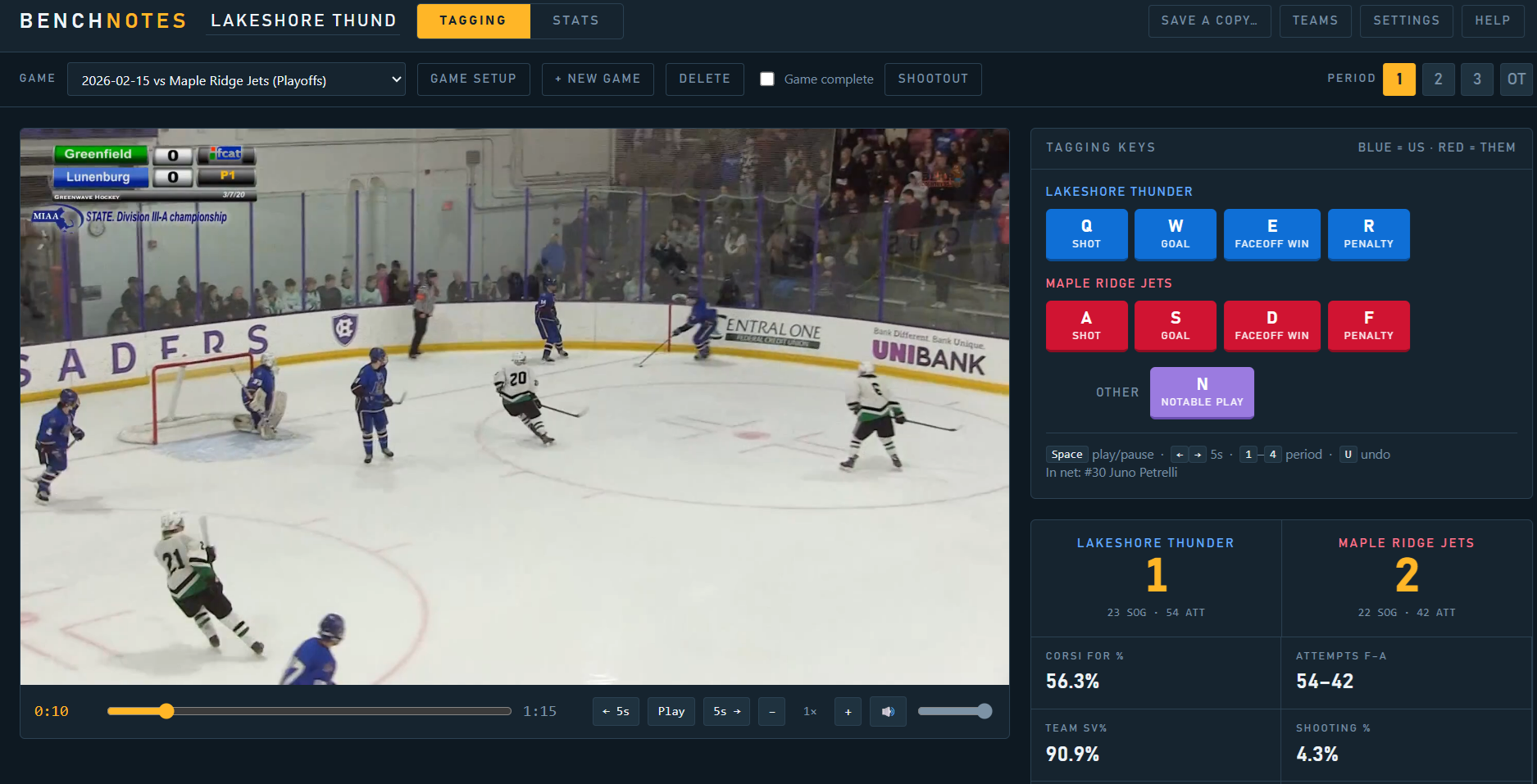
Your team on one row, the opposition on the row below. That is the whole thing.
“It takes me no longer to tag a game than it does to watch normally, but the stats and analysis I get out of it are the sort of thing I used to think you had to pay a lot of money for.”
— Me, the guy who built BenchNotes
Watch the demo video below.
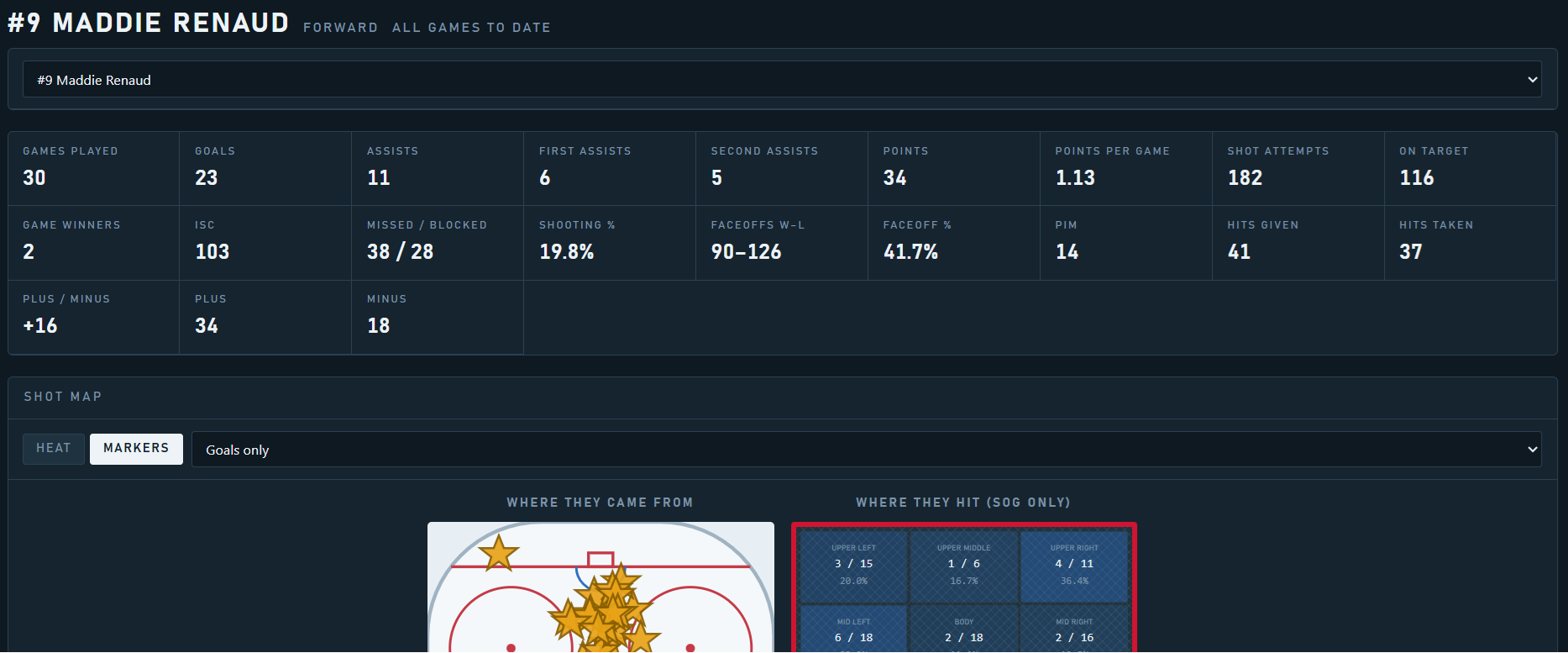
For each game, BenchNotes provides insights into who performed well and what to watch. For multiple game analysis, click the AI export to get a specially formatted file that AI can parse a million ways to discover insights you can't see. Check out an AI Enabled example.
Mark plays with one key while you watch, and BenchNotes cuts them out of your video afterwards. Then build the game's highlights video from them: your goals are already in, your notable plays and every save your goalie made are waiting to drop into sections you name yourself. Add your own music, preview the whole thing inside BenchNotes, and press a button to share with your players.
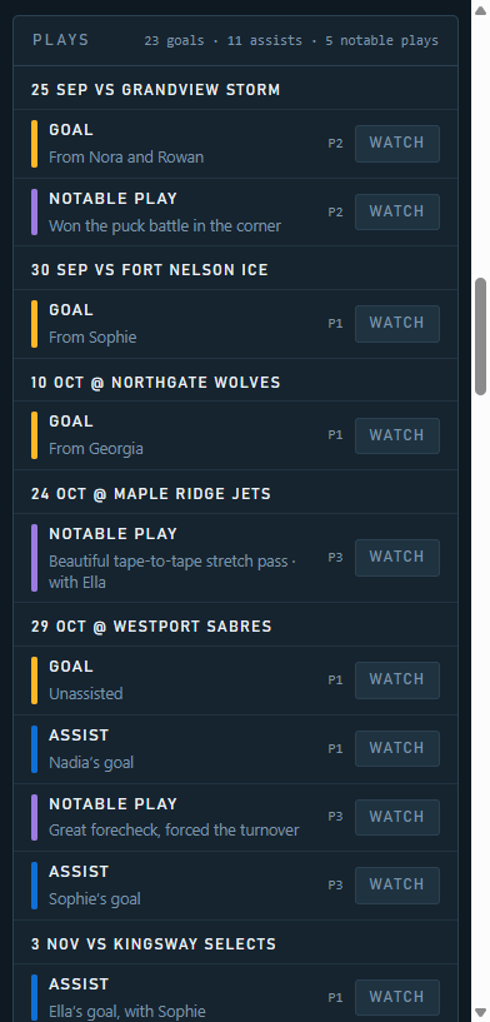
Publish a team page and your assistants get the whole season on a private link — every play, the shot map, the skaters and goalies stats, and the game log. Pick any game and every play tagged in it is listed, each with a Watch button that opens the game on YouTube at that moment, including every notable play.
Staff can also download their own copy of BenchNotes to their computer if they want to tag games as well.
Every game you tag rolls up into the season. Nothing has to be entered twice. Click any screenshot to see it full size.
Shots, shots on goal, goals, assists, points, faceoff wins and losses, penalty minutes, plus/minus and Corsi. Scoped to one game, one tournament, a game type, or the whole season.
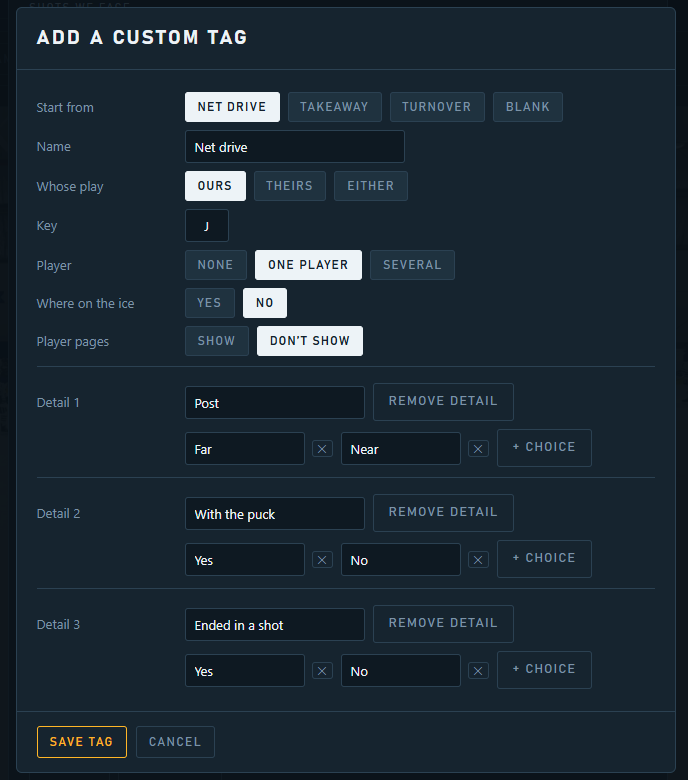
BenchNotes counts what most teams count. If your team counts something else — net drives, takeaways, turnovers, whatever you talk about on the bench — make a key for it. Name it, pick the key, say whose play it is and whether a player and a spot on the ice are involved, then add up to three details of your own with up to six answers each. Start from a ready-made template for net drives, takeaways or turnovers, or from blank.
Tagging stays as fast as everything else: press the key, the number keys answer the details, click the player. Each tag then gets its own column in the Skaters table and its own tile on the Stats pages, and clicking a choice narrows the rest of the tile — click “Far post” and the tile tells you how often far-post drives end in a shot. Every count has the clips behind it.
Your tags stay off player pages unless you put them there.
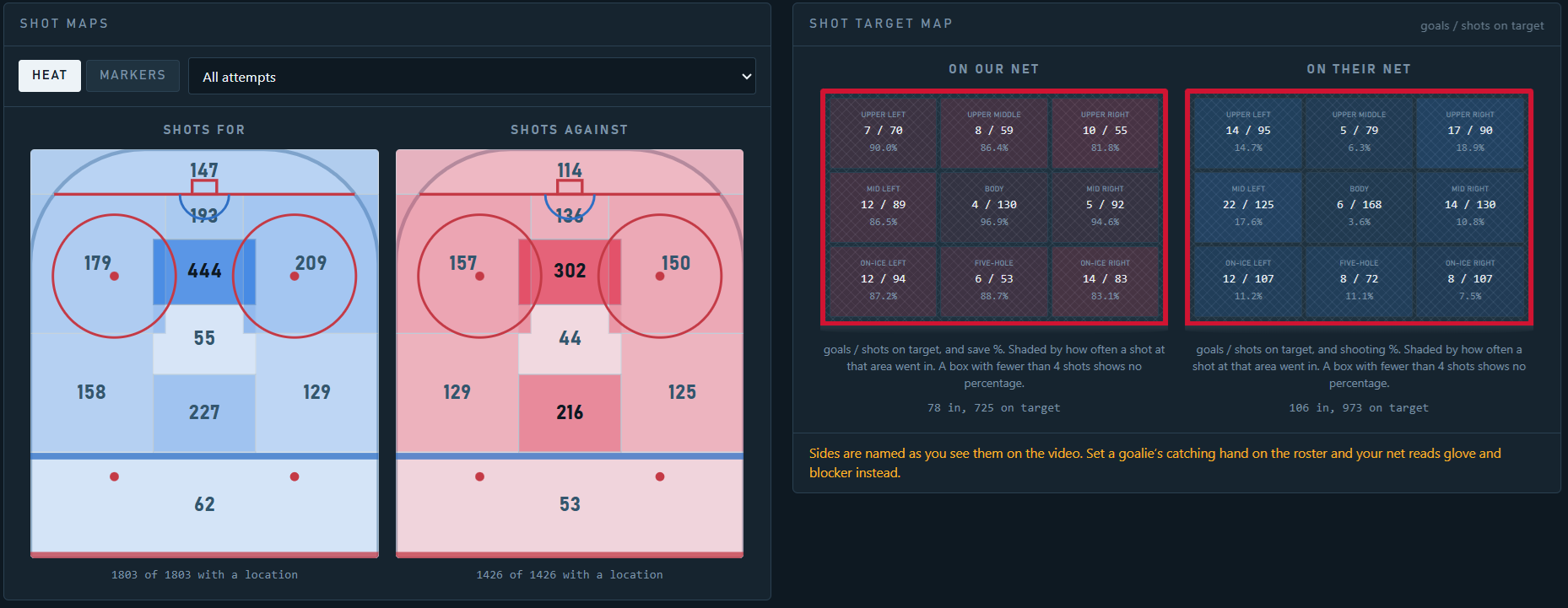
Every shot you tagged is placed on the ice where it came from, for the team and for each player. For goalies, the same picture from the other side — which part of the net they are being beaten in.
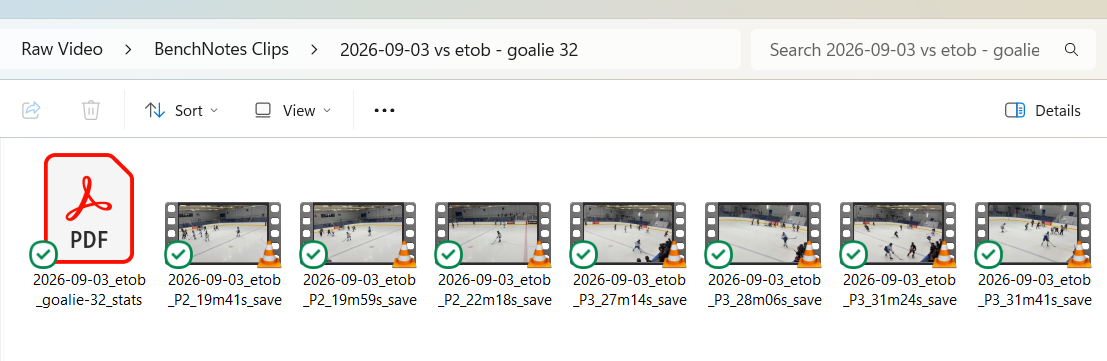
Mark a goal or a play as worth keeping while you tag. Export the lot afterwards and you get an ordinary folder of video files, named by game, that you can send to a parent or put in a group chat. Clicking on any shot marker, notable play or goal takes you right to that moment in the game video any time in the season.
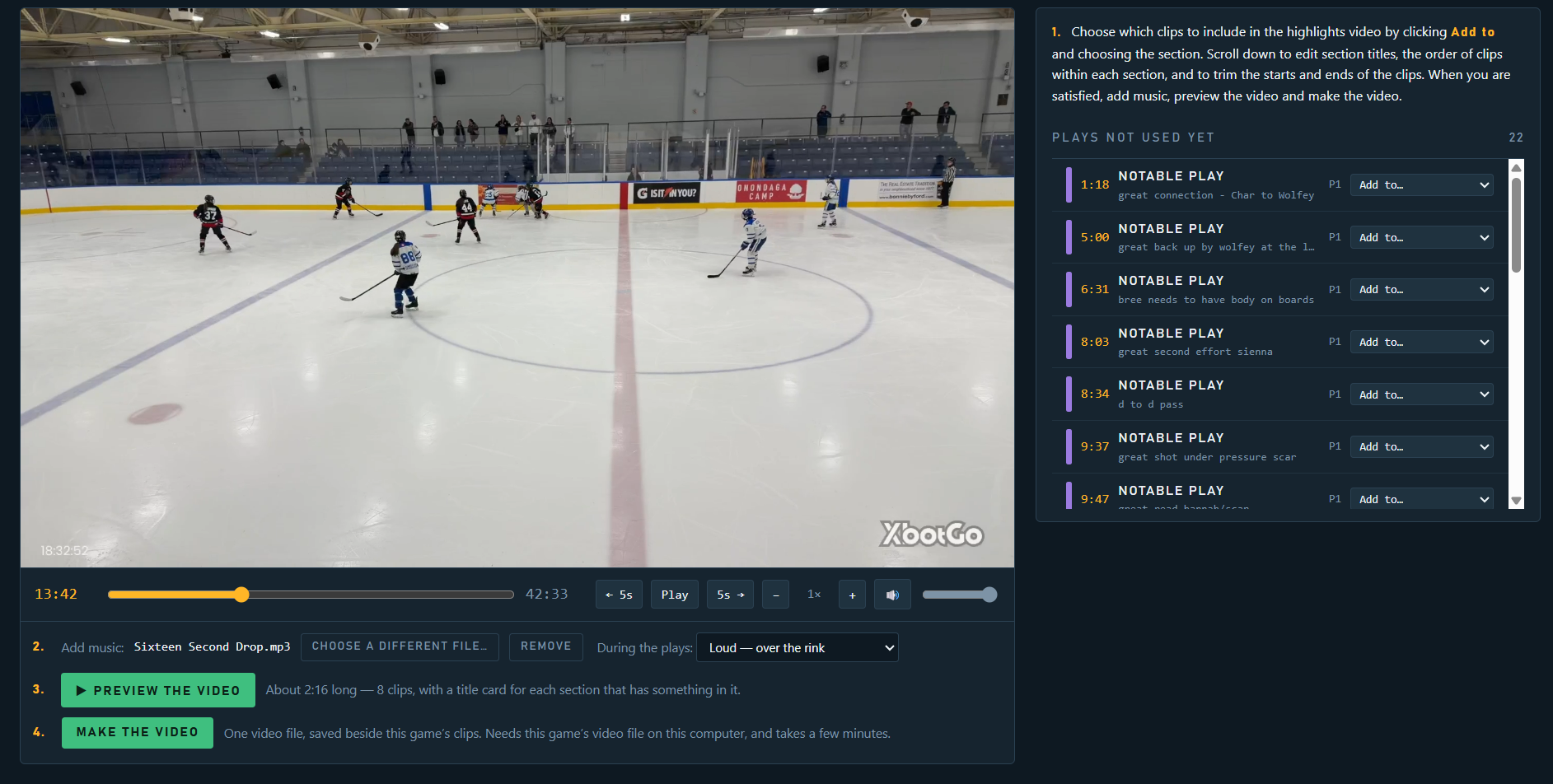
Once a game is tagged and marked complete, BenchNotes can build you a game highlights video. Create your own highlight sections and drop any notable plays or saves into them. Your goals are already in a Goals section. You can even drop in highlights from the Player of the Game. Trim the start and end of any clip and put them in the order you want and add your own background music. Preview the whole thing inside BenchNotes, and then create a version to send to parents and players.
BenchNotes can publish a private page for every player, in one step. Their family opens it on a phone — no app, no account, nothing to sign up for.
They get that player's season: goals, assists, points, shots, shooting percentage, faceoffs, plus/minus, penalty minutes. For a goalie, shots against, saves, save percentage and shutouts. Every one of those numbers can be tapped to watch the plays behind it, one after another — tap 23 goals and you watch all 23. Their shot map, where their shots finished on the net, and a game-by-game list grouped by exhibition, regular season, playoffs and each tournament, where each game's numbers play just that game's clips.
Underneath their own season sits the team's: the record, the stats and the shot heat maps, with no other player named. With a single game showing, one button opens the whole game on YouTube and another opens that game's highlights video, if you made one.
All of this depends on you putting the game on YouTube. You also pick which notable plays go on the page.
The page carries their first name and number, never a surname, and never the rest of your roster.
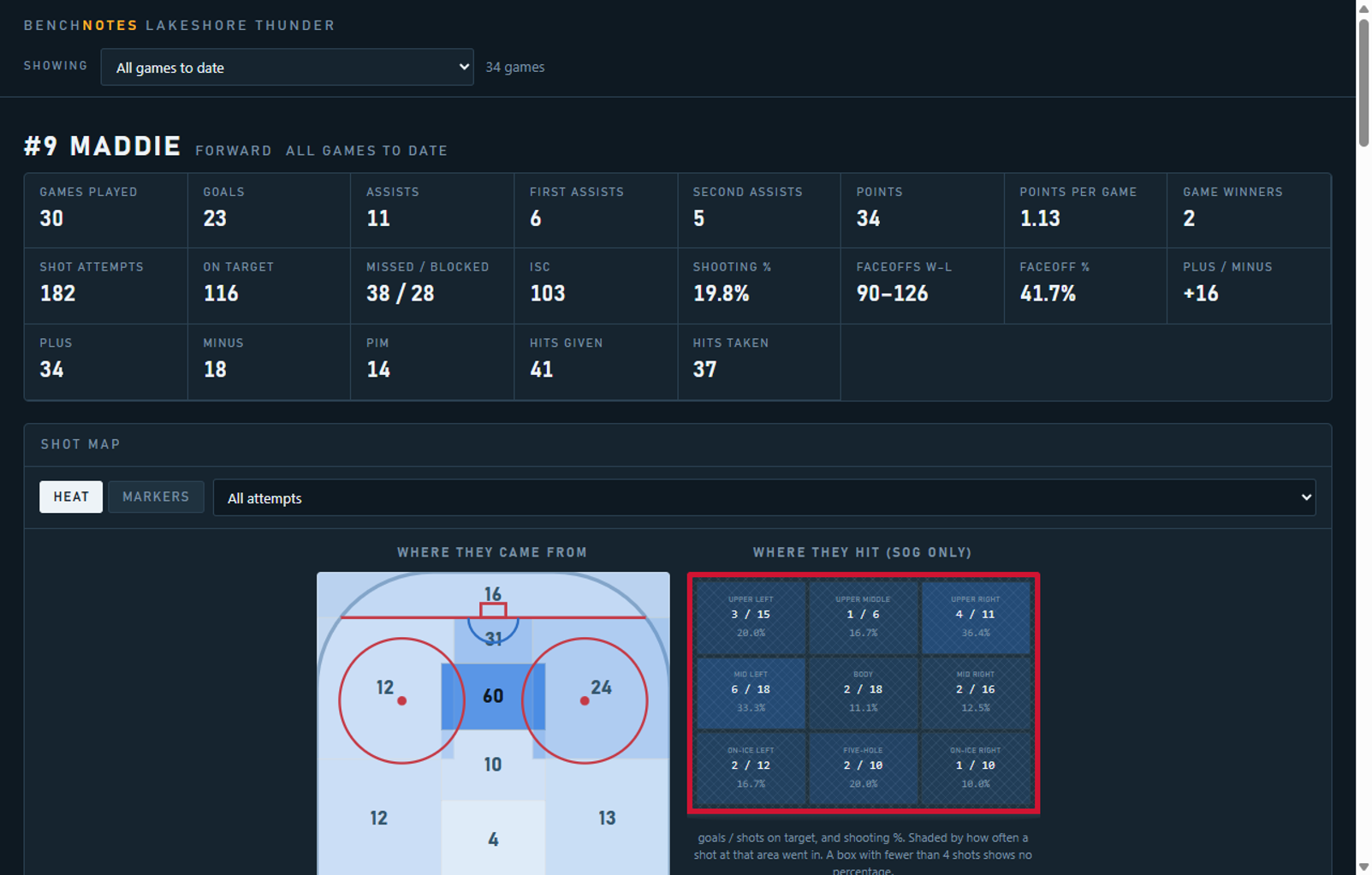
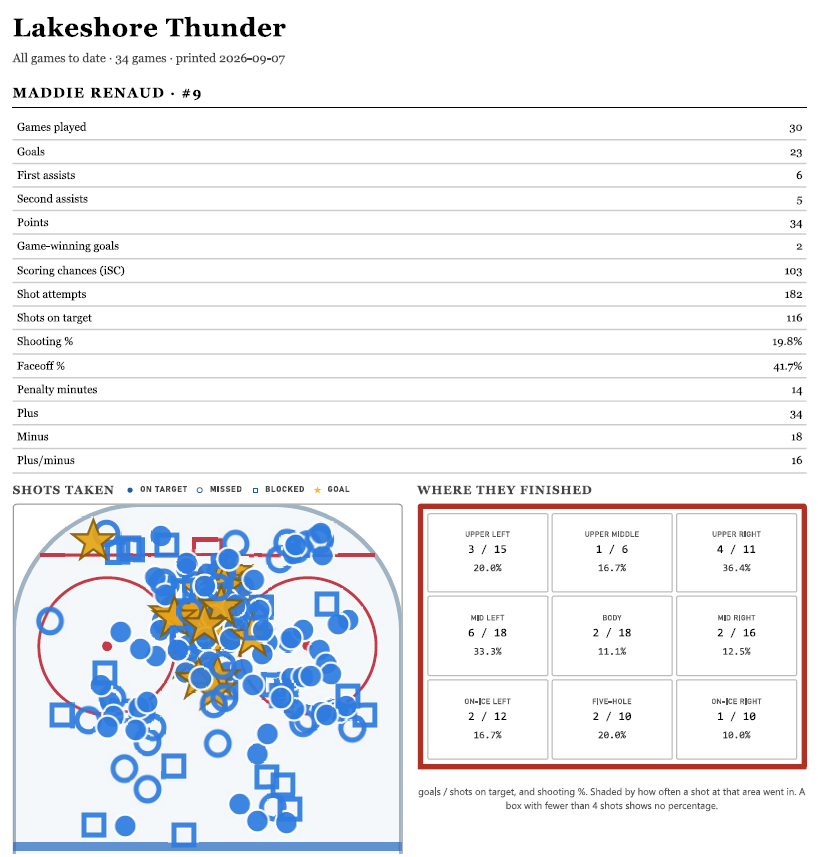
One sheet per player, with their own maps on it. Plus plain-English observations about what the numbers say — and an export you can hand to an AI assistant yourself if you want to ask it questions about your season.
Enter your roster once. It carries through the whole season.
Whatever you filmed on, from a phone on a tripod to the rink's camera. If it is in a format that will not play, BenchNotes offers to convert a copy and leaves your original alone.
One key per event. A period takes about as long as the period did, and you can pause or rewind whenever you like.
Statistics, maps and observations update as you go. Export clips, spreadsheets and reports whenever you want them.
Licence keys are sent by hand, usually within a few hours. You will get an email from me with your key and how to enter it.
BenchNotes runs free for 30 days from the first time you open it, with everything switched on. No key, no email, no card.
Windows will warn you about this file, and that is expected.
You will see a blue box that says Windows protected your PC the first time you run the installer. Click More info, then Run anyway.
Check that it says Brian Astl. That is me, and that is how you know you have got the real file. Windows shows this warning about any new program until enough people have downloaded it, which takes a while when the program is made by one person.